How Docker Actually Works — Container Internals Explained
How Docker uses Linux namespaces, cgroups, and OverlayFS to isolate processes, limit resources, and stack image layers. The kernel primitives behind every container.

What Is a Container, Really?
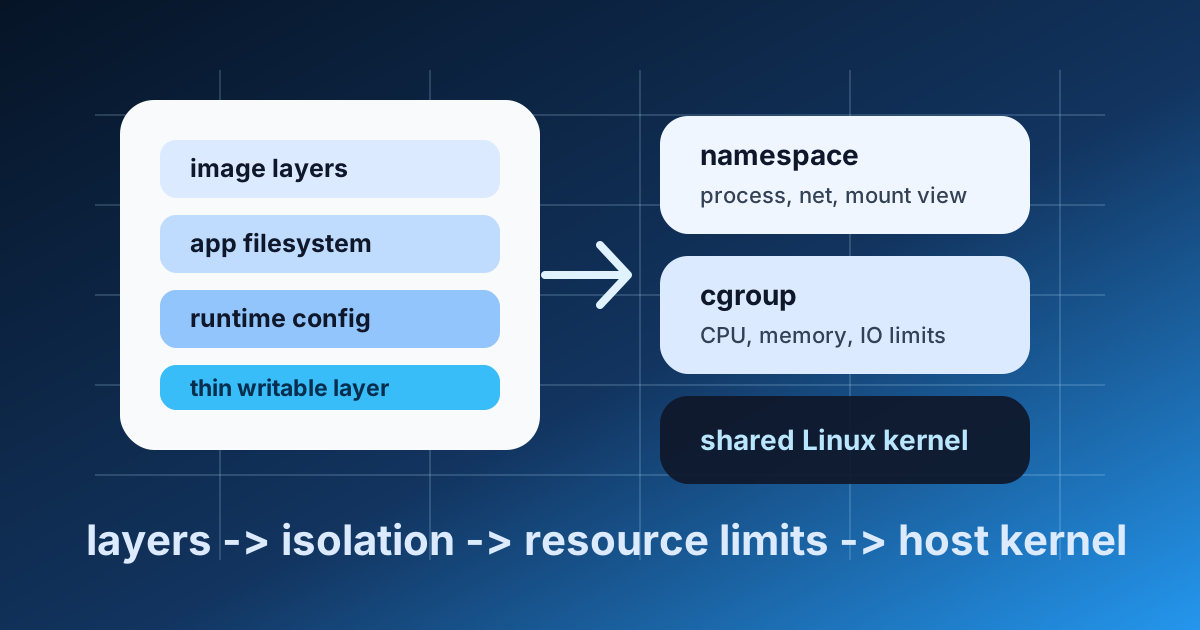
A Docker container is not a virtual machine. This is the single most important thing to understand before going further. A VM runs a complete operating system with its own kernel. A container shares the host kernel and uses Linux primitives to create an isolated environment.
Three Linux features make containers possible:
- Namespaces — isolate what a process can see
- cgroups — limit what a process can use
- Union filesystems — layer files efficiently
Docker is essentially a user-friendly wrapper around these three kernel features. When you run docker run nginx, Docker asks the Linux kernel to create a new set of namespaces and cgroups, mounts a layered filesystem, and starts your process inside that isolated environment.
Linux Namespaces: The Isolation Layer
Namespaces control what a process can see. Each namespace type isolates a different system resource:
| Namespace | What It Isolates | Flag |
|---|---|---|
| PID | Process IDs — container sees its own PID 1 | CLONE_NEWPID |
| NET | Network interfaces, IP addresses, ports | CLONE_NEWNET |
| MNT | Mount points — filesystem tree | CLONE_NEWNS |
| UTS | Hostname and domain name | CLONE_NEWUTS |
| IPC | Inter-process communication | CLONE_NEWIPC |
| USER | User and group IDs | CLONE_NEWUSER |
| CGROUP | cgroup root directory | CLONE_NEWCGROUP |
When Docker creates a container, it calls the clone() system call with these flags. The result is a process that thinks it has its own hostname, its own network stack, its own PID numbering, and its own filesystem — even though it shares the same kernel as the host.
You can verify this yourself:
# On the host, list namespaces for a running container
docker inspect --format '{{.State.Pid}}' my-container
# Then check its namespaces
ls -la /proc/<PID>/ns/
Each file in /proc/<PID>/ns/ is a namespace handle. If two processes share the same namespace file (same inode), they see the same view of that resource.
PID Namespace in Practice
Inside a container, the main process is always PID 1. But on the host, that same process has a completely different PID. This is PID namespace isolation:
# Inside the container
$ ps aux
PID  USER  COMMAND
1    root  nginx: master process
7    nginx nginx: worker process

# On the host
$ ps aux | grep nginx
PID    USER  COMMAND
28431  root  nginx: master process
28458  nginx nginx: worker process
Same processes, different PID numbering. The container cannot see or signal any process outside its namespace.
NET Namespace: Virtual Networking
Each container gets its own network namespace with its own eth0 interface, its own IP address, and its own port space. Docker creates a virtual ethernet pair (veth) — one end goes into the container namespace, the other connects to a bridge on the host (typically docker0).
This is why two containers can both listen on port 80 without conflicting — they each have their own network namespace.
cgroups: The Resource Limit Layer
Control groups (cgroups) limit how much of the host's resources a container can consume. Without cgroups, a runaway container could eat all available CPU and memory, starving other containers and the host itself.
Key cgroup controllers:
- cpu — CPU time allocation and throttling
- memory — RAM limits (hard and soft)
- blkio — disk I/O bandwidth limits
- pids — maximum number of processes
When you run docker run --memory=512m --cpus=1.5 nginx, Docker creates a cgroup with these limits and places the container process inside it.
# Check a container's memory limit
cat /sys/fs/cgroup/memory/docker/<container-id>/memory.limit_in_bytes

# Check CPU allocation
cat /sys/fs/cgroup/cpu/docker/<container-id>/cpu.cfs_quota_us
What Happens When Limits Are Exceeded
If a container tries to allocate more memory than its limit, the kernel's OOM (Out of Memory) killer terminates the process. This is why you sometimes see containers restart unexpectedly — they hit their memory ceiling.
CPU limits work differently. The container isn't killed; it's throttled. The kernel simply doesn't give it more CPU time than allocated. The process runs slower but stays alive.
Union Filesystems: The Image Layer
Docker images use a union filesystem (typically OverlayFS / overlay2 on modern Linux) to build images in layers. Each instruction in a Dockerfile creates a new layer. Layers are stacked on top of each other, and the union filesystem presents them as a single coherent filesystem.
Consider this Dockerfile:
FROM ubuntu:22.04          # Layer 1: Base OS (~77 MB)
RUN apt-get update         # Layer 2: Package lists (~45 MB)
RUN apt-get install -y nginx  # Layer 3: Nginx binary (~20 MB)
COPY index.html /var/www/  # Layer 4: Your file (~1 KB)
Each RUN and COPY creates a read-only layer. When you start a container, Docker adds one thin writable layer on top. Any file modifications in the running container go into this writable layer — the image layers below remain untouched.
Why Layers Matter
Layers are shared between images. If ten images all start FROM ubuntu:22.04, that base layer is stored only once on disk and once in memory. This is why pulling a new image is often fast — most layers already exist locally.
# See the layers of an image
docker history nginx:latest

# See layer storage on disk
ls /var/lib/docker/overlay2/
Copy-on-Write
When a container modifies a file that exists in a lower layer, the union filesystem copies that file to the writable layer first, then applies the modification. The original file in the read-only layer is unchanged. This is called copy-on-write (CoW).
This means:
- Starting a container is fast — no filesystem copying needed
- Multiple containers from the same image share all read-only layers
- Only modifications create new data
How Docker Networking Works
Docker sets up networking by combining namespaces with virtual network devices:
- docker0 bridge — a virtual switch on the host (default: 172.17.0.0/16)
- veth pairs — virtual cables connecting each container to the bridge
- iptables rules — NAT rules for port mapping (
-p 8080:80)
When you run docker run -p 8080:80 nginx:
- Docker creates a NET namespace for the container
- Creates a veth pair — one end in the container (becomes
eth0), one end on the bridge - Assigns an IP from the bridge subnet (e.g., 172.17.0.2)
- Adds an iptables DNAT rule: host:8080 -> container:80
# See the bridge
brctl show docker0

# See iptables rules Docker created
iptables -t nat -L -n | grep 8080
What Dockerfile Instructions Actually Do
Every Dockerfile instruction maps to a specific operation:
| Instruction | What It Does Under the Hood |
|---|---|
FROM | Sets the base image (starting layers) |
RUN | Executes command in a temporary container, saves the resulting layer |
COPY | Adds files from build context as a new layer |
ENV | Sets environment variable in image metadata (no new layer) |
EXPOSE | Documents a port in image metadata (does NOT publish it) |
CMD | Sets default command in image metadata |
ENTRYPOINT | Sets the executable that wraps CMD |
WORKDIR | Sets working directory for subsequent instructions |
The key insight: RUN creates a new container, executes the command, takes a snapshot of the filesystem changes, and saves that as a layer. Then it destroys the temporary container. This is why environment variables set with export in one RUN instruction don't persist to the next — each RUN is a separate container lifecycle.
Containers vs VMs: The Real Difference
| Aspect | Container | Virtual Machine |
|---|---|---|
| Isolation | Process-level (namespaces) | Hardware-level (hypervisor) |
| Kernel | Shared with host | Own kernel |
| Boot time | Milliseconds | Seconds to minutes |
| Size | Megabytes | Gigabytes |
| Overhead | Near-zero CPU overhead | 5-15% hypervisor overhead |
| Security | Weaker isolation (shared kernel) | Stronger isolation (separate kernel) |
| Density | Hundreds per host | Tens per host |
Containers are not more secure than VMs. They trade isolation strength for speed and density. If a kernel exploit exists, a container attacker can potentially escape to the host. VMs provide a hardware-level boundary that is significantly harder to cross.
For most web applications, the trade-off is worth it. For multi-tenant environments where you run untrusted code, VMs or microVMs (like Firecracker, which powers AWS Lambda) remain the safer choice.
The Connection to ABCsteps Lesson 06
In Lesson 06: Docker, we build a real containerized application from scratch. The lesson covers Dockerfile creation, port mapping, and running your app inside a container.
This blog post gives you the theoretical foundation. The lesson gives you hands-on practice. Together, they give you the complete picture of how Docker works: both the "why" and the "how."
Key Takeaways
- Containers are not VMs — they share the host kernel and use namespaces + cgroups for isolation
- Namespaces provide visibility isolation (PID, network, filesystem, users)
- cgroups provide resource limits (CPU, memory, disk I/O)
- Union filesystems enable efficient layered images with copy-on-write
- Docker networking uses virtual bridges and veth pairs with iptables NAT
- Layers are shared — this is why Docker is so storage-efficient
- Security trade-off — containers are faster and lighter but less isolated than VMs
Apply this hands-on · Module B
Docker: Make Local Software Repeatable
Lesson 06 has you write a real Dockerfile, run a container, and expose a port. This article gave you the why under the hood; the lesson gives you the working hands.
Open lesson